The Access page enables administrators to manage user roles by creating Access Groups and access group role assignments for users. The Viewer, Preparer, and Approver roles can be configured to give the user access to certain administrative functions, enabling administrators to provide partial access to specific areas of the solution without granting full access.
Users and Platform Security Groups are created in the OneStream System Administration tab. Administrators can leverage existing application security by adding Users and pre-existing Platform Security Groups to Access Groups on this page. Administrators can also mix and match based on their existing security model.
Manage Access Groups
-
Select the Insert Row icon.
-
Enter an Access Group name and description. The Name field is required, and the name must be unique for the Access Group to save.

-
Select the Save icon.
IMPORTANT: You cannot delete an Access Group if it is actively assigned to a Site. The Access Group must first be removed from all assigned Sites. See Sites.
Manage Roles

Select the Roles button to assign role permissions. In the Viewer, Preparer, and Approver tabs, select the specific solution areas each role will have access to.
The following optional permissions can be assigned to each role:
| Role | Description |
|---|---|
| Viewer |
Viewers can only view data on the Home page. This role has the following permissions:
|
| Preparer |
Preparers can enter data on the Home page. This role has the following permissions:
|
| Approver |
Approvers manage profile statuses. This role has the following permissions:
|
Manage Access Group Members
To add users to an Access Group, complete the following steps:
-
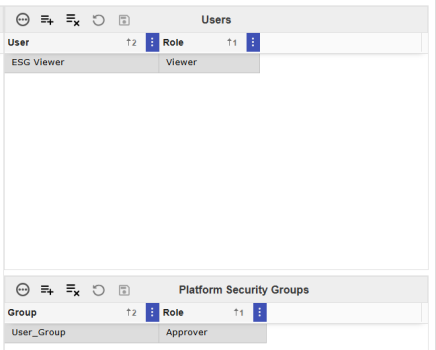
Select the Access Group from the Access Group grid to display the User and Platform Security Group grids in the pane.
-
From the Users grid, select the Insert Row icon.
-
From the User drop-down menu, select a user from the list.
-
From the Role drop-down menu, select a role for that user.
-
Select the Save icon.
-
NOTE: Multiple roles cannot be added to the same user.
To add user groups to an Access Group, complete the following steps:
-
Select an Access Group from the Access Group grid to display the User and Platform Security Group grids in the pane.
-
From the Platform Security Groups grid, select the Insert Row icon.
-
From the Group drop-down menu, select a group from the list.
-
From the Role drop-down menu, select a role for that user group.
-
Select the Save icon.
-
NOTE: Multiple roles cannot be added to the same user group.
 Select the Remove Row icon to remove a user or user group.
Import Access Groups
Use the Download and Import buttons to download a template and import Access Groups and group members.
To import Access Groups and group members, complete the following steps:
-
Select the Download button to display the Template Options slide-out panel.
-
From the Select Template drop-down menu, select either Access Groups or Group Members.
-
Select the Download button. Fill in all required template columns.
Column Description Access Groups Template Name Enter a name for the access group. Description (Optional) Enter a description for the access group. Group Members Template Access Group From column drop-down menu, select an access group. Member Type From the column drop-down menu, select either Security User or Security Group. User or Group Name Enter a user or group name. Role From the column drop-down menu, select either Preparer, Approver, or Viewer.
-
To import the template, select the Import button.
-
In the File Upload window, select the BROWSE button to open File Explorer.
-
Select the template and select the Open button.
-
Select the Upload button.

